

Reading time 5 mins
Introduction
The Confidential Audits feature allows organisations to manage and restrict access to sensitive audit information. Depending on assigned permissions, users can view, schedule, or manage the confidentiality status of audits.
This feature helps ensure that confidential audits are visible only to authorised users, maintaining compliance and data protection standards across your organisation.
Permissions
There are three permissions associated with confidential audits:
- View Confidential Audits - Allows the user to view confidential audits in the Audit List on the Audit Details page.
- Schedule Confidential Audits - Allows the user to schedule audits as confidential or non-confidential from the Schedule page
- Manage Confidential Audits - Allows the user to change the confidentiality status of an audit after it has been scheduled
Note: Only users with the relevant permission(s) will see confidentiality options within the system.
Scheduling a Confidential Audit
When scheduling a new audit, users with the Schedule Confidential Audits permission will see a Confidentiality Status button on the Schedule page.
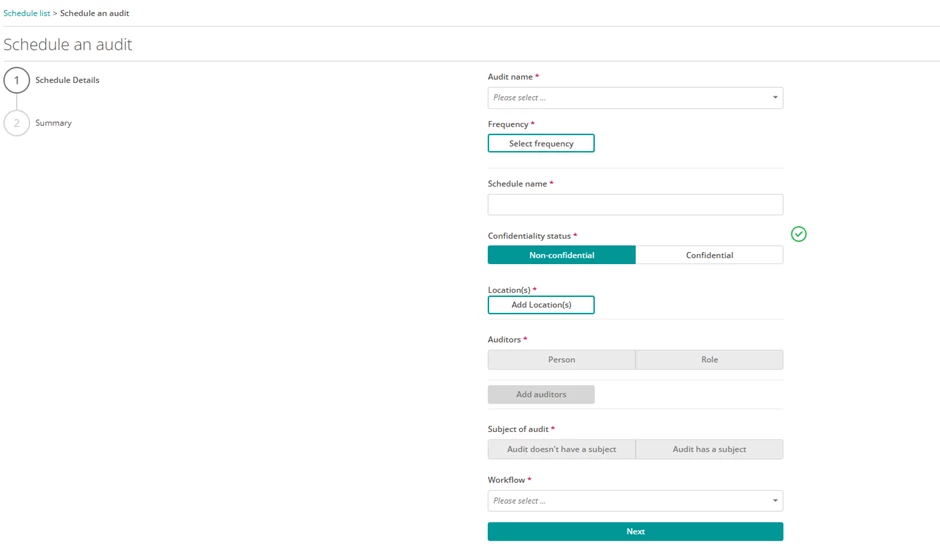
- The options available are Confidential or Non-Confidential
- The default setting is Non-Confidential
- Selecting Confidential ensures that only users with permission to view confidential audits can access it in the Audit List or Audit Details Page
Once scheduled, the confidentiality status is displayed in the audit’s details and in relevant list views for users with access.
Tip: Use confidential audits for topics or areas containing sensitive information to control visibility within your organisation.
Viewing a Confidential Audit
Users with the View Confidential Audits permission can see which audits are marked as confidential.
The confidentiality status is displayed clearly on the Audit Details page and within the Audit List view.
- Audits marked as Confidential are visible only to authorised users.
- Non-confidential audits remain visible to all users with standard audit viewing permissions
Managing Confidentiality Status
User with the Manage Confidential Audits permission can change an audits confidentiality setting after it has been scheduled.
From the Audits Details page:
- Locate the Confidentiality Status field.
- Toggle between Confidential and Non-Confidential.
- Confirm the change to update the audit’s confidentiality status.
Note: Changing the confidentiality status affects who can view the audit. Once marked confidential, only users with the View Confidential Audits permission will be able to access it.This affects all audits, including those completed and in progress.
Future Enhancements
In a future update, the ability to edit audit schedules will include changing the confidentiality setting for all audits within that schedule.
Further details will be shared closer to release.
Summary
The Confidential Audits feature allows organisations to control visibility and protect sensitive information across the audit process.
By assigning appropriate permissions: View, Schedule, and Manage, administrators can ensure that confidential data is restricted to authorised users only, while maintaining transparency and accountability within Radar Healthcare.