

Please note - this user guide is in reference to the Enhanced Audit functionality.
Reading time 6 mins
Introduction
The Edit Schedule functionality allows permitted users to make changes to existing audit schedules- including updates to templates, names, frequency, locations, assigned users or roles, audit subjects and workflows.
This feature is available across all supported devices- desktop, tablet, and mobile.
Please note:
- Edits affect only pending or planned audits
- In progress, overdue and completed audits remain unchanged
- The save schedule button only activates when changes are made
Accessing Edit Schedule
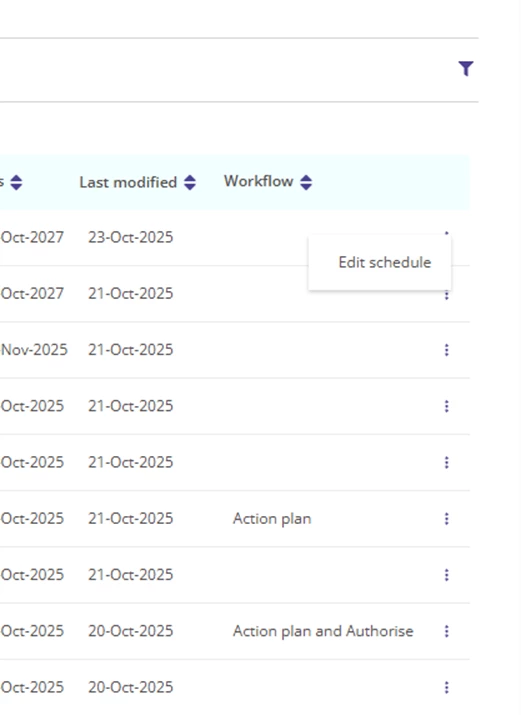
Navigate to Administration Panel > Audit Schedules, then select the schedule you wish to edit and choose Edit Schedule.
Editing the Schedule Name
Any user with the required permissions can change the schedule name.
When saving changes:
- The new name is updated and saved.
- The change appears in the Audit Template column on the Schedule list.
- Updates to the Schedule Name and/or Audit Name are shown on the Summary page.
- The Last Modified column is updated.
Editing the Schedule Frequency
When editing an audit’s frequency, you can adjust the following:
- Repeats every — choose the interval (e.g. daily, weekly, monthly, annually).
- On — available for weekly and monthly schedules to specify exact timing.
Weekly “On” options
- Monday
- Tuesday
- Wednesday
- Thursday
- Friday
- Saturday
- Sunday
Monthly “On” options
- Last day of the month
- First day of the month
- First Monday of the month
- Monthly by day (select a specific day of the month)
If “Does not repeat” is selected, today’s date will be used as the end of the schedule.
Schedule Start Date
- You can now edit the start date to today’s date or any future date.
- If the current start date is in the past, it can be updated to today or a future date.
- If the start date is already in the future, you may change it to a later date if needed.
When saving frequency or start date changes
Upon clicking Save schedule:
- All unstarted audits (pending or planned) are replaced with new audits based on the updated schedule.
- In-progress, overdue, and completed audits remain unaffected.
- Audits are regenerated according to the new start date and frequency.
Note: Frequency limits remain in place.
Schedule end limits (by date):
- Daily – up to 365 days
- Weekly – up to 52 weeks
- Monthly – up to 36 months
- Annually – up to 5 years
Schedule end limits (by occurrences):
- Daily – up to 365 occurrences
- Weekly – up to 52 occurrences
- Monthly – up to 36 occurrences
- Annually – up to 5 occurrences
Editing Locations
Adding Locations
Users with the required permissions can add one or more locations to an existing schedule.
When saving:
- A new schedule and associated audits are created for each added location.
- New audits are created following the existing frequency.
Removing Locations
When removing a location:
- The assigned Auditor and Audit Subject for that location are removed.
- Any unstarted audits linked to that location are deleted.
- In-progress and completed audits remain accessible in historical records.
A confirmation modal appears before saving to confirm you want to continue.
Editing Assigned Users or Roles
Users with the required permissions can change the assigned user or role for the schedule.
Each schedule can be assigned to either a user or a role, not both.
When saving:
- All changes are saved.
- If the assigned user or role is changed, applicable unstarted future audits are reassigned to the newly selected user or role.
- If the assigned user or role is not changed, existing auditor assignments on audit instances are retained.
- Any audit instances that have been manually reassigned will remain assigned to their current owner when other schedule settings are updated.
- In-progress, overdue and completed audits remain unchanged.
- You are returned to the Schedule list.
Additional behaviour:
- Changing from a user to a role (or vice versa) triggers a confirmation modal.
- If a user attempts to save without selecting a user or role, a validation message appears.
- Editing other schedule settings, such as the schedule name, frequency, locations, workflow or audit subject, will not update auditor assignments unless the assigned user or role is also changed.
- Previously, editing and saving a schedule could reset audit instances back to the user or role originally selected on the schedule. This behaviour has now been updated.
Example
A schedule is initially assigned to a Home Manager.
The Home Manager reassigns individual audit instances to members of staff.
If the schedule is later edited to update another setting, such as the schedule name, dates or frequency, those individual auditor assignments will remain unchanged.
They will only be updated if the assigned user or role is changed on the schedule.
Note: If the current assigned user no longer has the Complete Audit permission or is inactive:
- The user must select a valid, active replacement.
- The inactive or unauthorised user will not appear in the list.
If no changes are made, the existing assignment remains.
Editing the Audit Subject
Users with the required permissions can modify the audit subject for a schedule.
You can:
- Select a different subject list.
- Change the subject items assigned to given locations.
- Set the schedule to “Audit doesn’t have a subject” if no subject is required.
Example: This option is useful for audits that apply to all locations or departments rather than specific subjects.
Editing the Workflow
Users can also change the workflow associated with a schedule.
Available options include:
- No additional workflow
- Action plan
- Action plan and authorise
- Authorise only
When saving:
- The new workflow applies to all unstarted audits in the schedule.
- In-progress, overdue, and completed audits retain their original workflow.
Permissions
- Edit access will be included within the standard CreateSchedule permission.