

Reading time 3 mins
Introduction
A Recorded Link is a URL link that the user must click on to complete the form. An example could be visiting an external website. Recorded Links can also be used to link to a document saved within Radar Healthcare's document management, that you want a user to read/have access to as part of completing a form.
Recorded Link questions are always mandatory.
How do I set a Recorded Link?
- From within the Form Editor, drag the Recorded Link from the left-hand elements pane, into the middle canvas.

When you first drag the element, it will turn red, as can be seen in the image below.
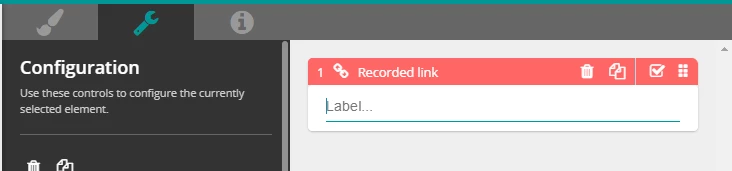
- Enter the details for the recorded link on the left-hand panel:
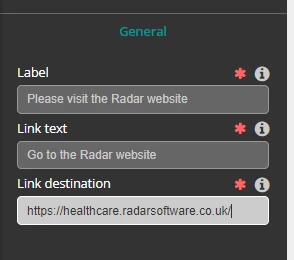
- Label - this is the question itself
- Link text - this is the text that will appear on the link button (see screenshot below)
- Link destination - this is the URL that you would like to link to the form.
Linking to a webpage using Recorded Links
- Below is an example linking to a web address, simply type or copy and paste the web address into the Link destination field.
- When the user clicks on the link, they will be redirected to the given page.
Linking to a Document using Recorded Links
- If a document is saved in Radar Healthcare, it can be linked to a form for a user to download. This is often used in Workforce Compliance Requirements for example, to ensure that users have downloaded and read a policy.
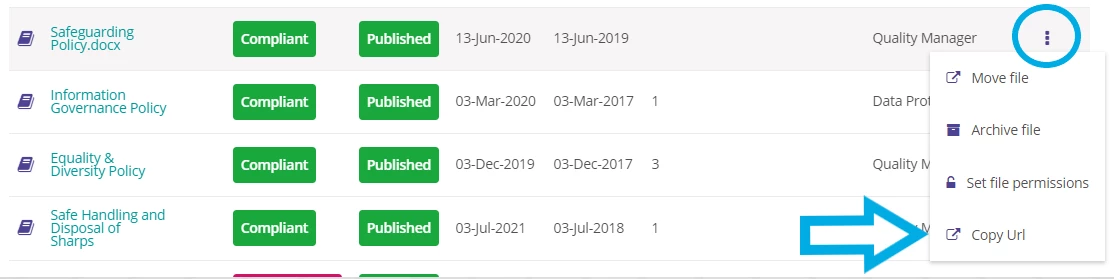
- To find the link for a document, from within the document management section of Radar Healthcare, select the three-dot menu icon to the right-hand side of the document you wish to link to the form and select Copy URL.
- Navigate back to the Form in the Form editor.
- Select the Recorded link element, as per the instructions above.
- In the Link destination field on the left-hand panel, paste the link that you have just copied.
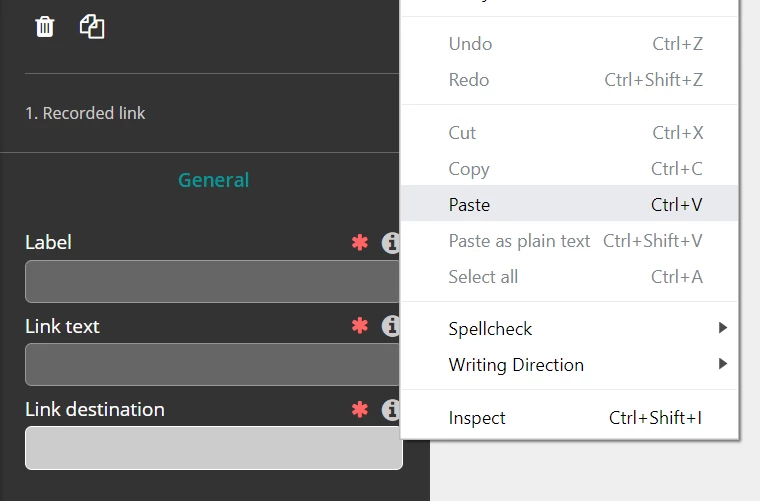
- Enter the Label and Link text as required.
- You can now see your link on the preview screen on the right-hand side.
- When a user clicks on this link, the document will download directly to their computer/device.
- Please note - when linking to a document, you must ensure that the permissions set on the document allow the users completing the form to access the document. If the permissions on a document restrict access to only certain roles any other users trying to follow the link will be unable to do so.
FAQs
How do I add logic to a recorded link?
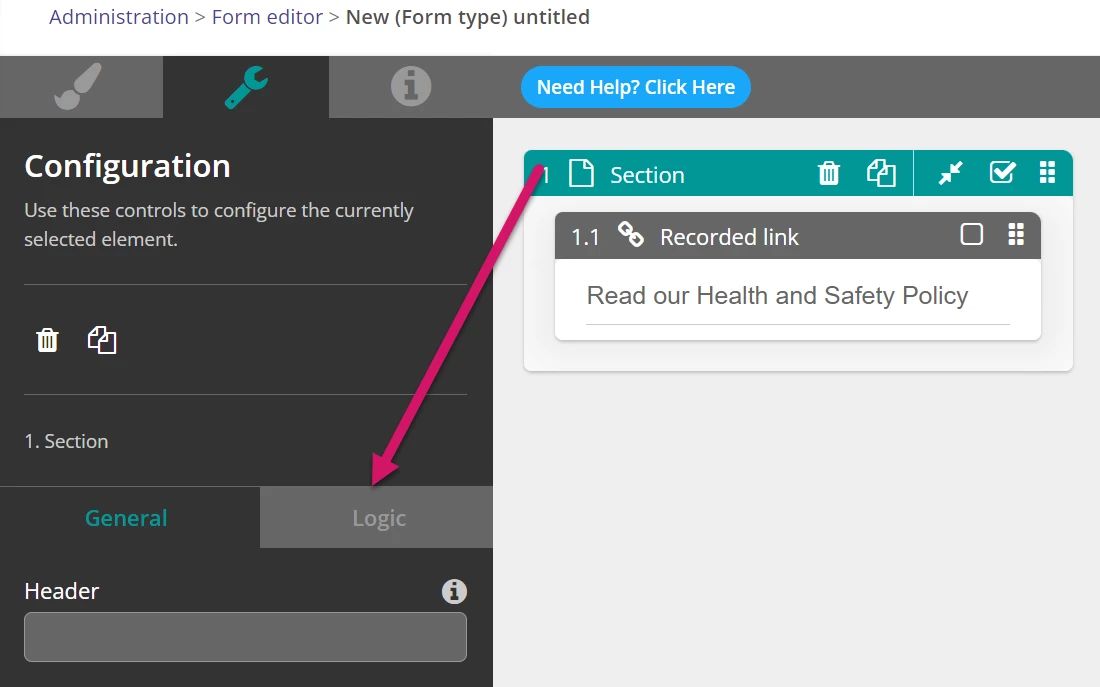
- Drag a section element next to your recorded link in the canvas.
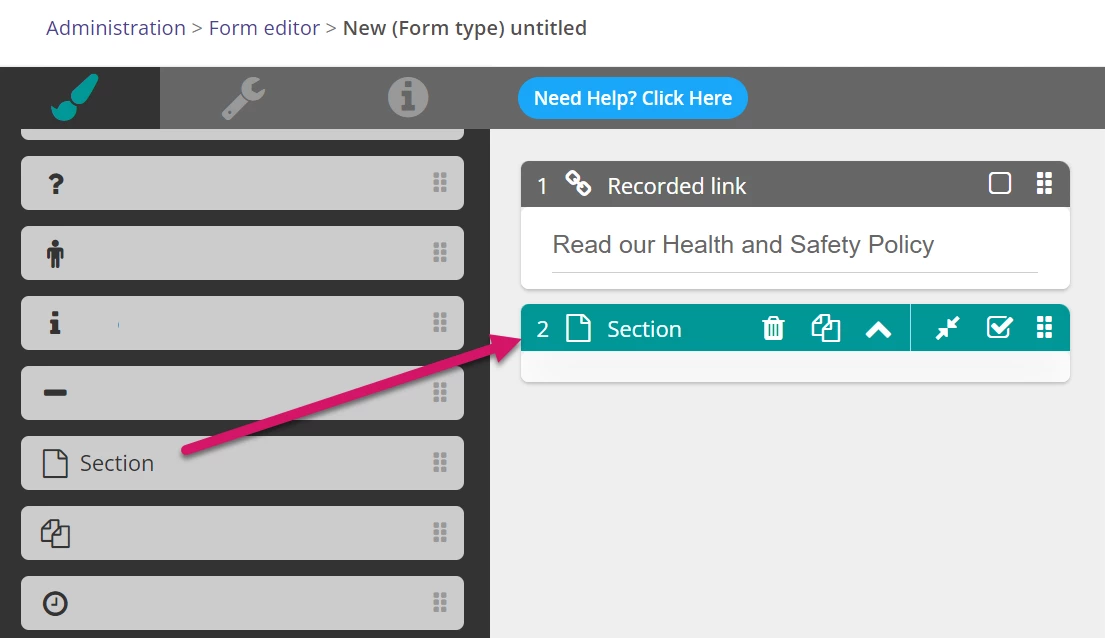
- Drag your recorded link into the section. Using the section itself you will be able to add logic to ensure the section only appears based on the answer to a previous question and given our recorded link is within the section it will apply the logic to the recorded link.