

Please note - this user guide is in reference to the Enhanced Audit functionality.
Reading time 3 minutes
Introduction
Duplicate an existing audit schedule to create a new schedule using the same configuration. This is useful when you need to continue a recurring schedule into a new period without changing the current schedule.
When a schedule is duplicated, the Schedule an audit wizard automatically populates with the details from the original schedule. You can review and amend the copied information before saving the new schedule.
Why duplicate a schedule?
Duplicating a schedule allows you to:
- Create a new schedule using an existing setup.
- Save time by avoiding manual reconfiguration.
- Amend locations, dates, frequencies, and other settings before saving.
- Preserve the original schedule and any audits that have already been created from it.
Example
You may have a quarterly audit schedule running across 200 locations from January to March.
When preparing the next quarter's schedule:
- Duplicate the existing schedule.
- Update the schedule period to April to June.
- Amend any locations or settings as required.
- Save the new schedule.
This creates the next quarter's schedule without affecting the existing January to March schedule or any audits that are still active.
How to duplicate an audit schedule
- Navigate to Audit schedules.
- Locate the schedule you want to duplicate.
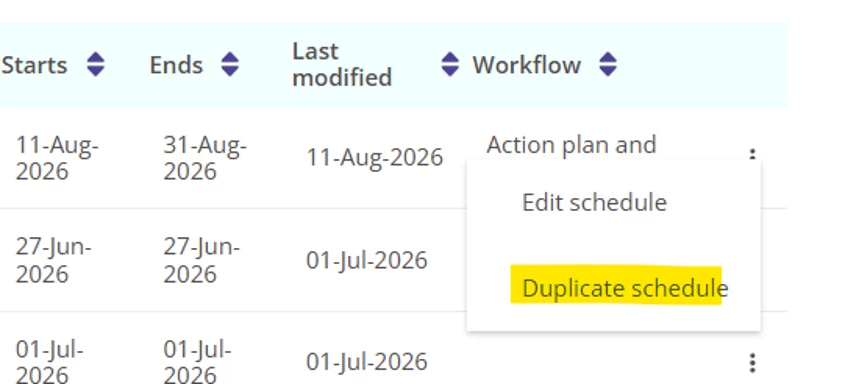
- Select the three-dot menu next to the schedule.
- Select Duplicate schedule.
- The Schedule an audit wizard opens.
- The wizard is pre-populated with the details from the selected schedule.
- Review the banner displayed at the top of the page.
The banner displays:
You are making a copy of [previous schedule name]
This helps confirm that you have selected the correct schedule.
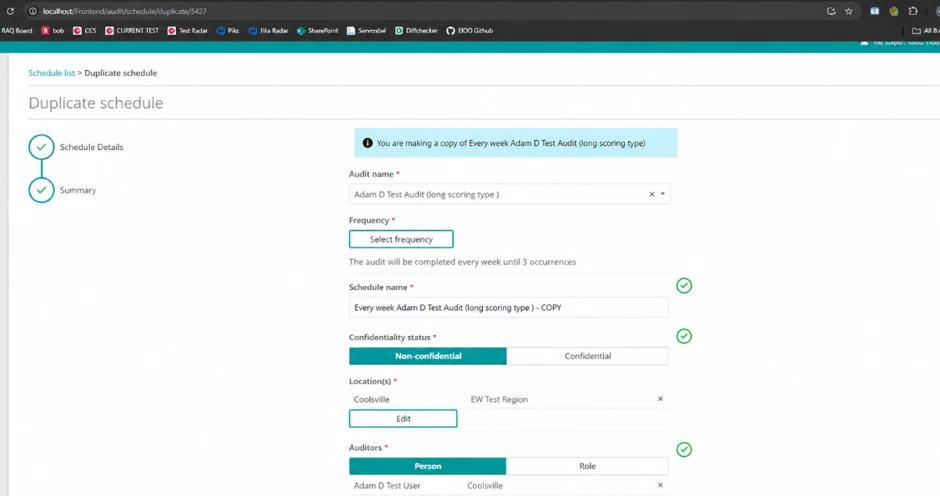
- Review the copied schedule details.
- Update any fields as required.
- Check the automatically generated Schedule name.
- Confirm the schedule name is appropriate for the new schedule period.
- Select Next to continue through the wizard.
- Review the summary page.
- Select Save to create the new schedule.
What is copied when a schedule is duplicated?
When you duplicate a schedule, the system copies the existing schedule configuration into the Schedule an audit wizard, including:
- Audit template.
- Schedule frequency.
- Assigned locations.
- Due date settings.
- Other configured schedule details.
You can amend any of these settings before saving the new schedule.
Schedule name updates
When creating a duplicate schedule, Radar Healthcare automatically generates a new schedule name based on the updated frequency and scheduling information.
This helps:
- Differentiate the new schedule from the original.
- Reduce validation issues caused by duplicate schedule names.
- Make schedules easier to identify in the schedule list.
We recommend reviewing the generated name before saving the schedule.