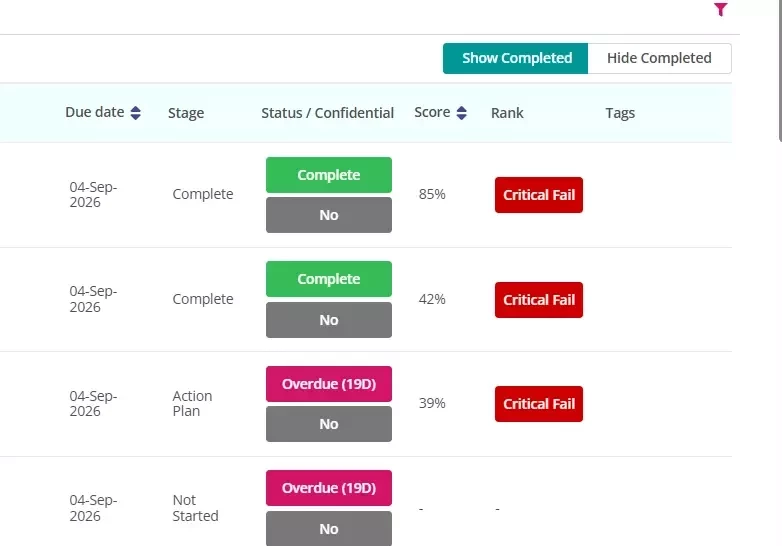

Critical Fail allows an audit to be clearly identified when a high-risk question receives a failed response. You can retain the audit’s calculated score or automatically change it to 0%, while applying the Critical Fail rank in either case.
Understanding critical fail
Critical Fail can be used as an escalation route for an audit. The audit continues to use its normal questions and defined scoring, but selected high-risk questions can override the overall result when they are failed.
Critical Fail is useful when:
-
A single failed control makes the overall audit unacceptable, regardless of the remaining responses.
-
The result needs to be immediately visible as high risk.
-
Your organisation needs a consistent way to identify audits that require escalation or follow up.
How critical fail works
-
Enable Critical Fail on the audit template.
-
Choose what should happen to the audit’s score.
-
Identify the high risk questions that can trigger a Critical Fail.
-
Save and publish the template.
-
If an auditor fails one of those questions, the completed audit receives the Critical Fail rank.
Enabling Critical Fail on an Audit Template
-
Go to Audit Builder.
-
Create a new audit template or open the template you want to update.
-
Open the audit template settings.
-
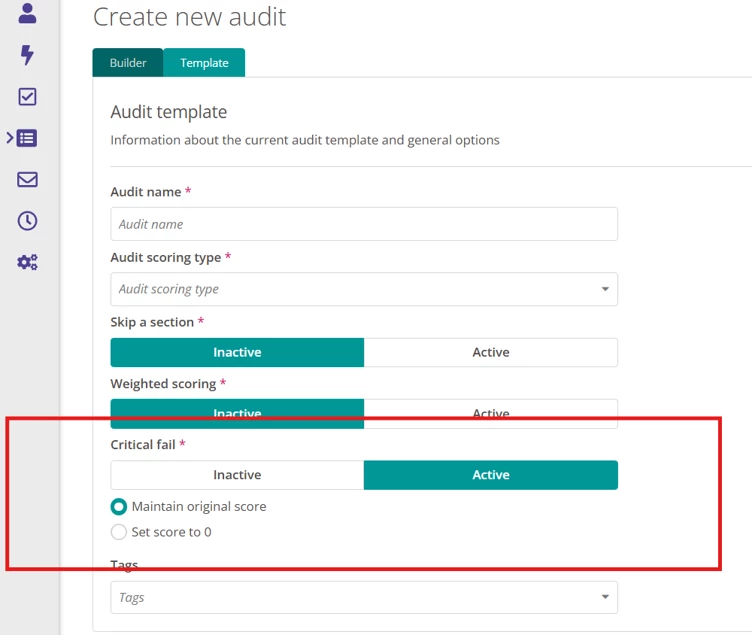
Find Critical Fail and turn it on.
-
Select what should happen to the audit’s score when a Critical Fail is triggered.
Two scoring options are available:
Maintain Original Score
The audit retains the score calculated from its responses. The overall audit rank changes to Critical Fail.
For example, an audit may retain a score of 82% while still being ranked as a Critical Fail because a high-risk question was failed.
Set Score to 0
The audit’s overall score changes to 0% and its rank changes to Critical Fail.
Use this option when any Critical Fail should cause the entire audit to receive a score of 0%, regardless of the scores achieved elsewhere in the audit.
The scoring option applies to the template as a whole. Choose the option that best reflects how your organisation interprets and reports serious failures.
Configuring a Critical Fail Question
Once Critical Fail has been enabled on the template:
-
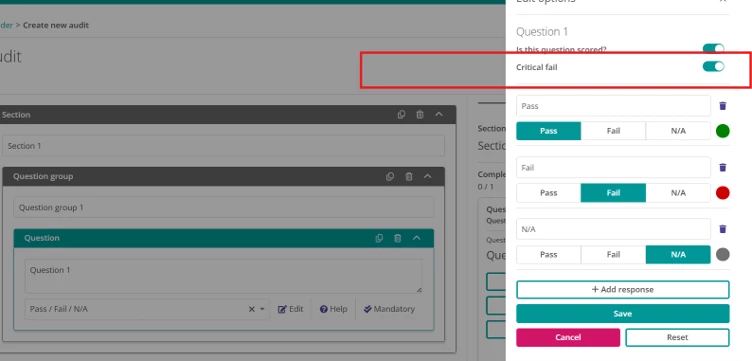
Open the question that should be capable of causing a Critical Fail.
-
Enable Critical Fail for that question.
-
Check that the relevant response or responses are configured as a Fail.
-
Save the question.
If the question has more than one response configured as a Fail, any of those failed responses can trigger the overall Critical Fail result.
Publishing and Completing the Audit
After configuring the template:
-
Save the audit template.
-
Review the questions and Critical Fail settings.
-
Publish the template.
-
Schedule the audit
-
Complete the audit.
If a Critical Fail question receives a failed response, the overall audit rank becomes a Critical Fail.
The audit’s final score will either:
-
Retain its normally calculated score if Maintain Original Score was selected; or
-
Change the overall score to 0% if Set Score to 0 was selected.
Reviewing a Critical Fail Result
The audit overview displays the overall Critical Fail rank and final score. The audit responses allow you to identify the high-risk question that caused the Critical Fail.