

Reading time 2 mins
Introduction
The Skip a Section feature allows auditors to mark an entire section of an audit as not applicable when it is not relevant. This feature:
- Reduces unnecessary data entry
- Keeps audits focused and efficient
- Improves accuracy of audit responses
This is useful where certain questions do not apply to the current audit. Questions in a skipped section are excluded from the overall audit score, ensuring auditors are not penalised for sections that do not apply.
Tip: Use Skip a Section instead of selecting multiple Not Applicable (N/A) responses to keep audits quicker to complete and easier to review.
When to use Skip a Section
Some audit sections may not be relevant in every scenario. For example:
- A healthcare audit section on diabetes where no individuals have diabetes
- A medication audit section for treatments that are not prescribed
- A financial audit section for expenses that do not occur regularly
- A social care audit section on mobility support where individuals are fully independent
- An ambulance audit section on vehicle or equipment checks where a vehicle or kit is not in use
Instead of selecting Not Applicable (N/A) for each question, auditors can:
- Skip the entire section
- Record a reason for skipping
Who can use Skip a Section?
The Skip a Section feature is controlled at the audit template level. Users with Build Audit Template permission can enable this feature. Auditors will only see the option if it has been enabled on the template. If the feature is not enabled, the skip option will not appear during audit completion.
Enabling Skip a Section
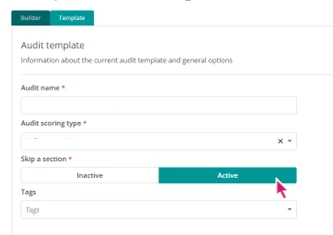
Administrators can enable this feature in the Audit Builder. To enable Skip a Section:
- Go to Administration Panel > Audit Builder
- Open the required audit template
- Select Template Settings
- Locate the Skip a Section toggle
- Switch the toggle on
- Select Publish to apply the change
Once enabled, auditors will see the Skip this section option during audits. The setting applies to all sections within the template.
Important: If this setting is enabled on an existing template, it will only apply to future audits. Audits already in progress or completed will not be affected.
Using Skip a Section during an audit
When completing an audit, the Skip this section button appears at the top and bottom of each section. To skip a section:
- Select Skip this section
- Enter a reason in the Reason for skipping text box
- Enter at least three characters
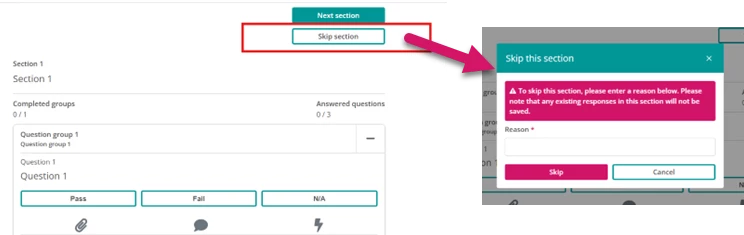
Once skipped, the section is disabled:
- All questions and fields become inactive
- Attachments and comments are also disabled
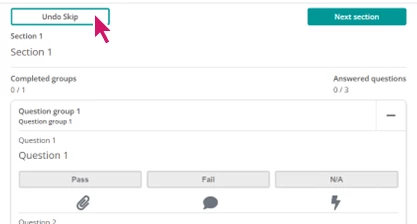
To un-skip a section:
- Select Un-skip section
- Complete the section as required
Visibility and tracking
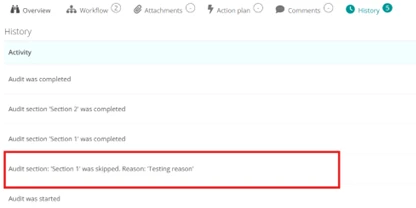
All skipped sections are recorded to maintain transparency. The following information is captured:
- The section that was skipped
- The user who skipped it
- The reason provided
This information is available in:
- Audit Overview
- Audit History
- Comments
FAQ
Can I choose which sections auditors can skip?
- Skip a Section is applied at the audit template level.
- When enabled, auditors can choose to skip any section during audit completion
- This allows auditors to skip only the sections that are not relevant
- The setting enables the ability to skip any section within the whole audit and cannot be limited to specific sections