

Reading time 2 mins
This is due for release into Staging on 18th June 2026 and will be released into your Live site on the usual schedule.
Introduction
- Weighted Scoring lets organisations move beyond simple Pass / Fail audit scoring and measure how well standards are being met.
- Instead of rigid Pass = 1, Fail = 0 and N/A removed from scoring, you can assign configurable numerical values to Pass-style responses so audits better reflect real-world compliance, risk and quality.
Why use Weighted Scoring?
Weighted Scoring helps you:
- Capture partial compliance rather than an absolute pass/fail
- Reflect real-world inspection frameworks (for example CQC)
- Reduce unrealistic “100% compliant” results
- Create more meaningful trends and reporting
- Prioritise higher-risk questions
- Improve visibility of areas needing improvement
Weighted Scoring supports audits and assessments like:
- CQC-style inspections
- Peer reviews and quality assessments
- Internal governance audits
- Cleaning and IPC audits
- Risk-based compliance reviews
How Weighted Scoring works
- Responses marked as Pass can contain a weighted score.
- Weighted Scoring is configured at the response level. Administrators assign numerical values to responses that are considered a Pass.
- Responses marked as Fail always score 0, and responses marked as N/A are excluded from scoring.
Key Notes:
- Only whole numbers can be used.
- The maximum score value for a response is 100.
- Each scored question must have at least one Pass and one Fail response.
Example response set:
| Response | Type | Score |
|---|---|---|
| Outstanding | Pass | 4 |
| Good | Pass | 3 |
| Requires Improvement | Pass | 2 |
| Fail | Fail | 0 |
Enabling Weighted Scoring
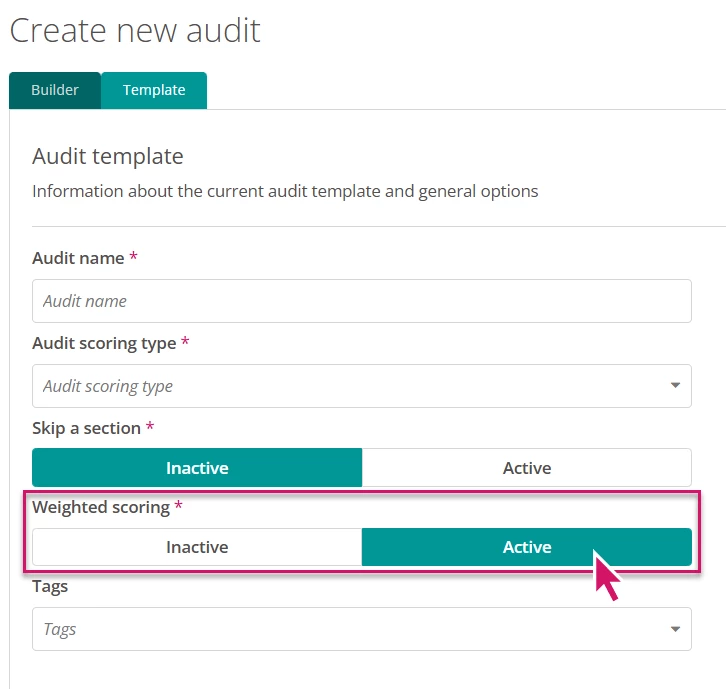
- Weighted Scoring is enabled per audit template. Users with access to the Audit Builder can switch it on.
To enable Weighted Scoring:
- Go to Administration Panel > Audit Builder
- Open the audit template you want to edit
- Select the Template tab
- Locate the Weighted Scoring toggle and switch it on
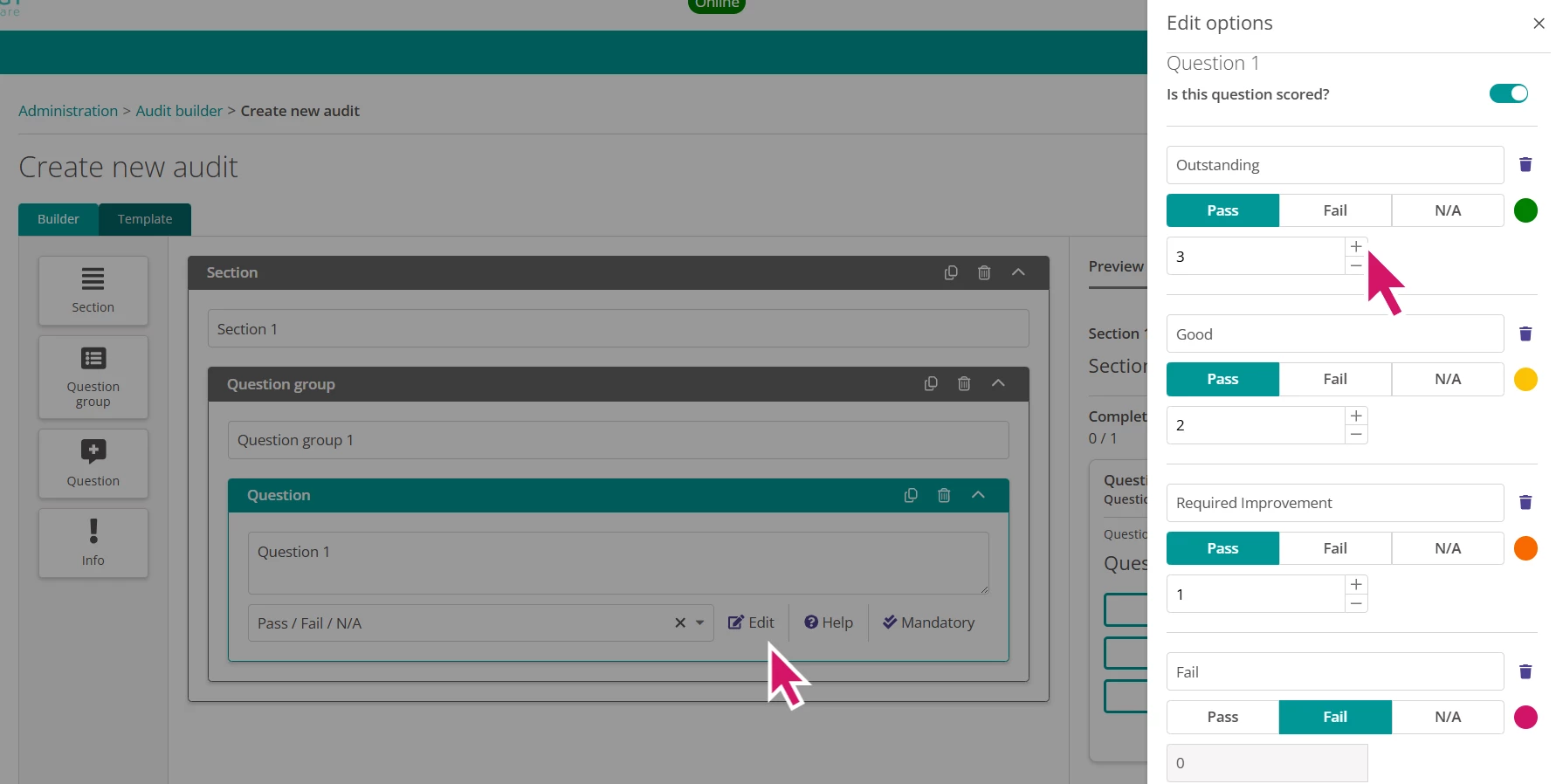
- Select Builder and choose a Question, select Edit against the answer options.
- Set each response as Pass, Fail or N/A
- Enter a whole-number score for Pass responses (0 is reserved for Fail responses)
- Select Save and Publish
- Once enabled, weighted options appear when editing question responses.
- You can enable it for both existing templates and new templates. Changes apply to future and not-started audits using the template.
How scores are calculated
- Each question’s achieved score is the numerical value selected. The question’s maximum possible score is the highest score assigned to any Pass response for that question. Overall calculations use:
- Question score ÷ Question maximum = Question percentage
- Radar Healthcare aggregates these values to calculate:
- Question scores
- Question group scores
- Section scores
- Overall audit scores
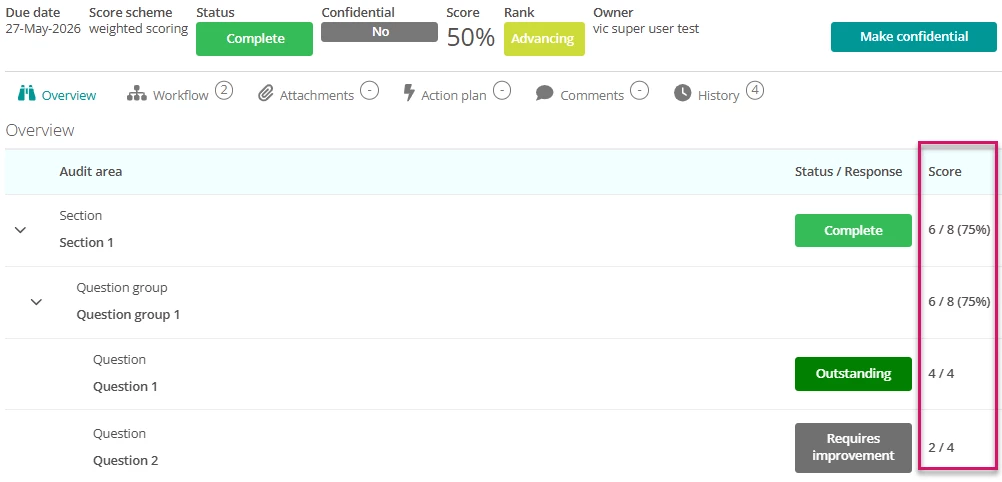
Weighted scoring results appear in the Audit Overview and show:
- Section score
- Question group score
- Question score (achieved vs maximum)
- Overall percentage
| Level | Example |
|---|---|
| Question | 4 / 5 |
| Question Group | 12 / 20 (60%) |
| Section | 25 / 40 (63%) |
Understanding question weighting
Weighted Scoring can be used in different ways depending on your goals.
-
Option A — Equal weighting
-
Give every question the same maximum possible score so each question contributes equally to the overall audit score. Use this when all questions are considered equally important.
-
-
Option B — Risk-based weighting
-
Give higher-risk or critical questions larger maximum scores so they have a greater impact on the overall result. Use this when certain areas should drive the audit outcome more strongly (for example controlled drug storage vs signage).
-
Example: Equal weighting vs risk-based weighting
Equal weighting example — each question maximum = 5
| Question | Result | Score (achieved / max) |
|---|---|---|
| Hand Hygiene | Fully Meets | 5 / 5 |
| PPE Compliance | Partially Meets | 2 / 5 |
| ID Bands Checked | 3/5 Correct | 3 / 5 |
| Medication Records | Fully Meets | 5 / 5 |
- Total achieved = 15, Total possible = 20, Overall = 75%
Risk-weighted example — some questions have higher maximums
| Question | Result | Score (achieved / max) |
|---|---|---|
| Hand Hygiene Signage | Fully Meets | 5 / 5 |
| PPE Compliance | Partially Meets | 2 / 5 |
| Controlled Drug Storage | Fail | 0 / 20 |
| Emergency Equipment Checks | Fully Meets | 10 / 10 |
- Total achieved = 17, Total possible = 40, Overall = 43% — the failure in a heavily weighted question reduces the overall score significantly.
Frequently Asked Questions
Can I use Weighted Scoring on existing templates?
Yes. You can enable Weighted Scoring on existing and new templates. Changes apply to future and not-started audits based on the template.
Will auditors see anything different when completing an audit?
No. Weighted Scoring only changes how responses are scored and reported — the audit completion experience is unchanged for auditors.
Can Fail responses have weighted values?
No. Responses marked as Fail always score 0.
Can I create multiple Pass responses?
Yes. You can define multiple Pass responses with different scores (for example Outstanding, Good, Requires Improvement). At least one Fail response must still exist.
Can questions be excluded from scoring?
Yes. Questions marked as “Not scored” are excluded from scoring calculations.
Reporting in Analytics
Analytics support for Weighted Scoring is planned as a future enhancement. Historical reporting for templates that use weighted scoring will be available from the point the feature is released into Analytics.