


Reading time 2 mins
- When a document is uploaded there may be an option to Ratify the document, prior to it being published. The ratification step can be enabled/disabled within your system upon request. Speak with our Support team if you would like to use this option and it is not currently visible.
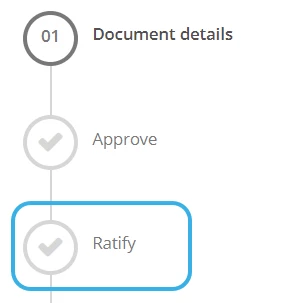
- If a document is awaiting ratification, it will have a Publish state of Approved (if your system uses the approve step before ratification) or Draft (if your system only uses the ratification step).
- At this point, the document will only be visible to those with Admin User document permissions (set in Access control) and any users set as a member of the ratification group when the document was being uploaded. For more information, please read how to Upload a new document.
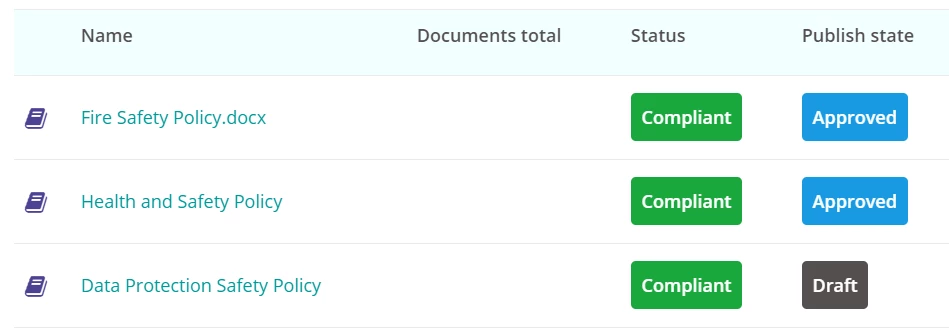
Ratifying a Document
- If you have been assigned as the Ratifier for a document, the document will appear on your dashboard once the pending period is reached. Click on the task from this list to be taken to the document details page.
- Here you can see the document awaiting ratification, along with other details such as the version history and approval notes (if applicable). Click on the document link to download the current document.
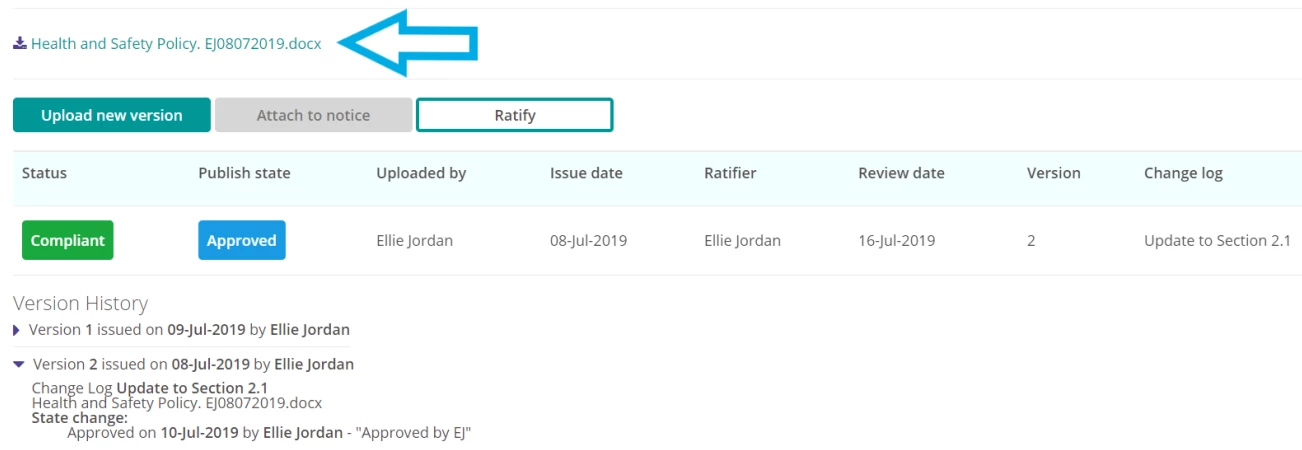
- If any changes need to be made select ‘Upload new version’ to replace the latest document.
- If you are happy to approve the document as it stands, select Ratify.
- Confirm the ratification by entering your comments and select Yes.
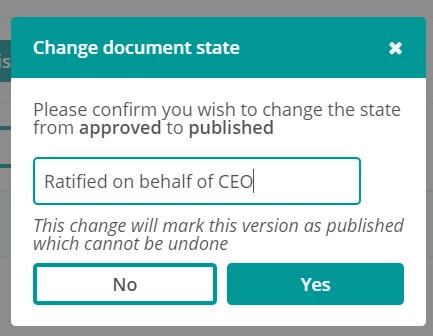
- The details entered will be noted in the version history below the document.
- The document will now be Published and available for users to access and download.