

Reading time 5 mins
Introduction
The Events RACI helps organisations provide additional users with ad hoc access to a specific event that may sit outside their current role scope and permissions.
This first release is available within the Events module only and introduces a new Stakeholders tab on the Event Details page.
Authorised users can use the Stakeholders tab to grant other users either:
- View access
- Edit access
About the Events RACI
The Events RACI allows authorised users to grant access to a specific event without relying solely on:
- Existing role permissions
- Workflow assignments
Users can be added as stakeholders directly against an individual event and given the appropriate level of access.
Access to the Stakeholders Tab
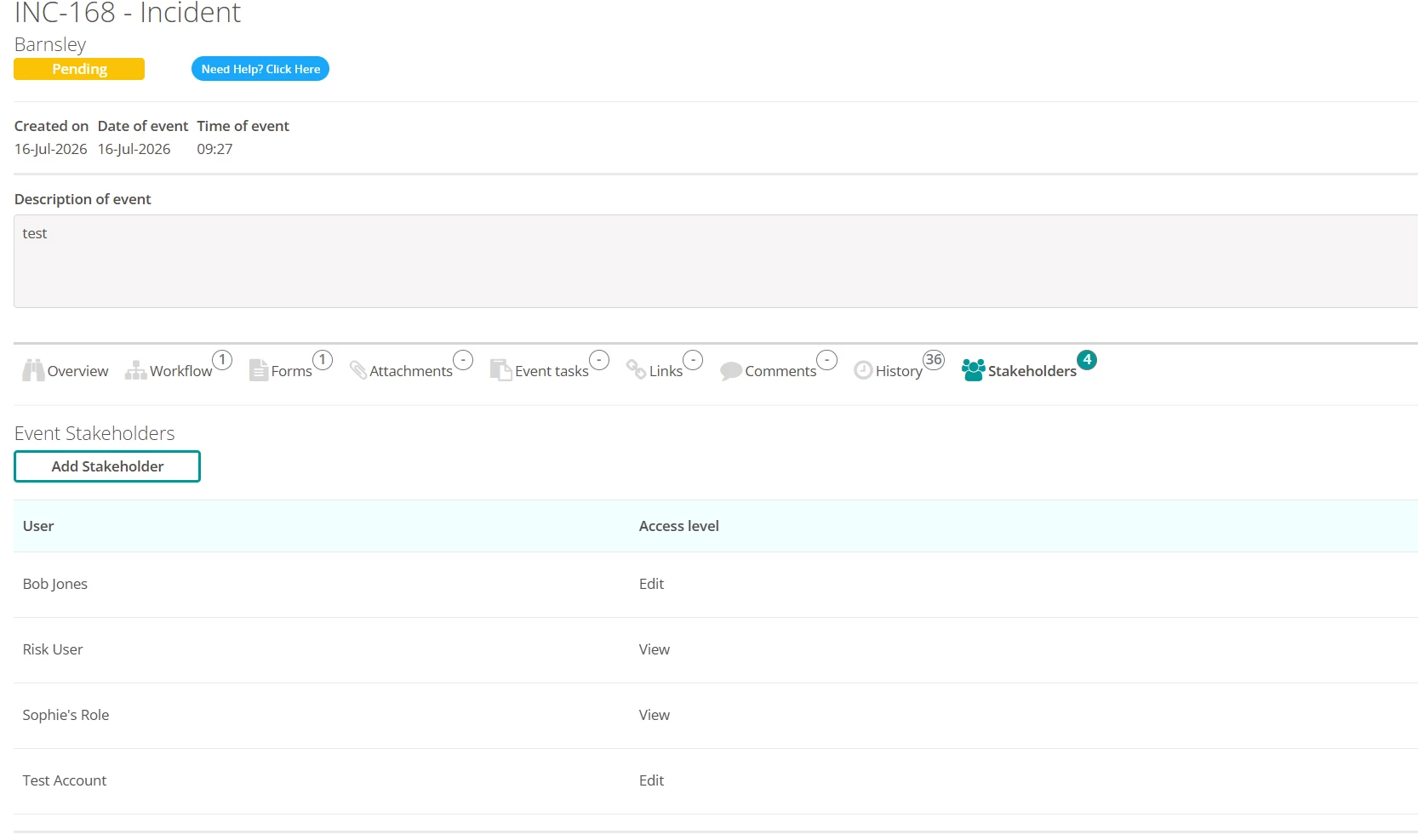
All users who have access to view an Event will be able to see the stakeholders tab within the event in a read-only view.
Only certain users can manage stakeholder access for an event.
Users must have one of the following permissions:
- Manage stakeholder view
- Manage stakeholder edit
Users with the Manage stakeholder view permission can:
- Assign View access to an event's stakeholder list.
- Remove stakeholders with view access from the event.
Users with the Manage stakeholder edit permission can:
- Assign Edit access to an event's stakeholder list.
- Remove stakeholders with edit access from the event.
Users with both the Manage stakeholder view and Manage stakeholder edit permissions can:
- Assign View access to an event's stakeholder list.
- Remove stakeholders with view access from the event.
- Assign Edit access to an event's stakeholder list.
- Remove stakeholders with edit access from the event.
- Amend users access between view and edit.
Important: To access the RACI events functionality you will need a Radar Admin to turn the license on for you.
The Stakeholders Tab
A new Stakeholders tab is available on the Event Details page.
Users with access to this tab can view all stakeholders currently assigned to the event.
Users with View access can:
- See the list of stakeholders.
- View their assigned access levels.
- The stakeholders list will be read-only.
Users with Edit access can:
- Add new stakeholders.
- Change stakeholder permissions.
- Remove stakeholders.
- Manage access for other users linked to the event.
Manage Event Stakeholder Access
Add a Stakeholder
- Open the required Event and navigate to the Stakeholders tab.
- Review the list of existing stakeholders and their current access permissions.
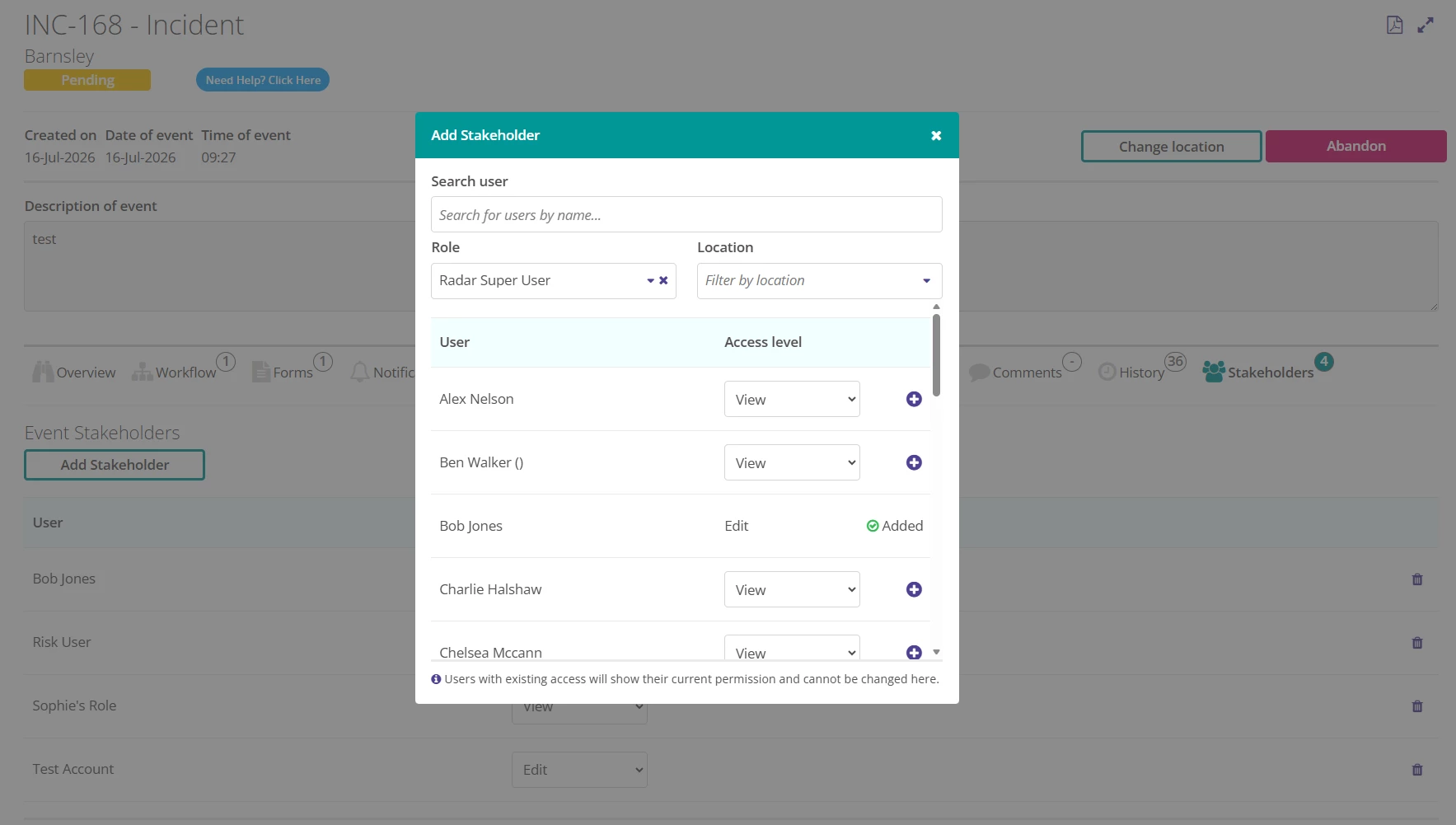
- Click Add Stakeholder.
- Search for the user by filtering on:
- Username
- Role
- Location
- Once you have located the user, select:
- The required Access Level
- Whether they should have View access or Edit access
- Click the + button to add the permission.
- A confirmation message will appear stating that the permission has been added successfully.
Change a Stakeholder’s Access
- Navigate to the Stakeholders tab on the Event.
- Locate the stakeholder whose access you want to update.
- Find the Access Level field and select the dropdown menu.
- Choose the new access level.
- A confirmation message will appear stating Access mode updated successfully.
Remove a Stakeholder’s Access
- Navigate to the Stakeholders tab on the Event.
- Locate the stakeholder whose access you want to remove.
- Select the Bin icon on the far-right side of the stakeholder row.
- The permission will be removed immediately.
- A confirmation message will appear stating Permission removed successfully.
View Access to the Event
View access allows users to review information associated with an event without making changes.
Users with View access can:
- View forms attached to the event (read-only).
- View the Event Overview (read-only).
- View workflow steps (read-only).
- Export the event to PDF.
- View linked events.
Please note: Users with View access can see forms but cannot complete them unless the form has been assigned directly to their user account or role.
Edit Access to the Event
Edit access includes all View access permissions as well as the ability to update and contribute to the event.
Users with Edit access can:
- View forms attached to the event.
- View the Event Overview.
- View workflow steps.
- Export the event to PDF.
- Edit event details.
- Upload new forms.
- Complete forms.
- Reassign workflow steps.
- Add comments.
- Remove comments.
- Add attachments.
- Remove attachments.
- Create event tasks.
- Complete event tasks.
- Link events.
FAQs
Who can access the Stakeholders tab?
Users must have the Events RACI Permission assigned to their role before they can access the Stakeholders tab. To access the RACI events functionality you will need a Radar Admin to turn the license on for you.
Can all users manage Stakeholders?
No.
Users must have one of the following permissions:
- Manage stakeholder view
- Manage stakeholder edit
Can a user with View access update an event?
No. View access is read-only and does not allow users to make changes to event information.
Can users with View access complete forms?
Only if the form has been assigned directly to their user account or role.
Is RACI available across all Radar modules?
No. The current release is limited to the Events module. Future releases will expand RACI functionality and introduce additional permission levels.
Does this grant access to events marked as confidential?
Yes. If a user is added as a stakeholder through the Events RACI functionality, they will be able to access that specific event even if it has been marked as Confidential.
RACI permissions provide access directly to the event, allowing the user to view or edit the event based on the level of access they have been assigned.
Please note: Access is granted only to the specific confidential event the user has been added to. It does not provide access to other confidential events within Radar Healthcare.