

Overview
Multi-Factor Authentication (MFA) adds an extra layer of security to your Radar Healthcare account by requiring a verification code from an authenticator app when signing in.
Administrators can enable MFA for specific roles or for all roles across the organisation.
Before You Start
To manage MFA settings, users must have:
- The Manage Multi-Factor Authentication permission enabled
- Permission to access and manage the Administration area in Radar
Without these permissions, MFA settings will not be visible.
Managing MFA for Roles
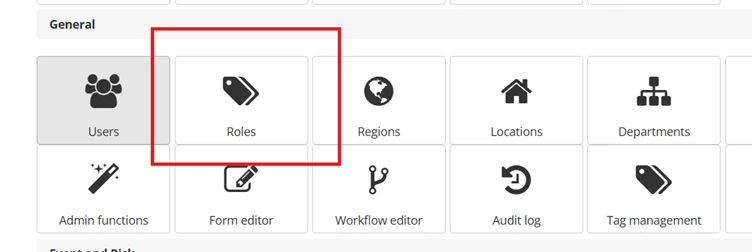
Navigate to Roles
- Go to Administration
- Select Roles
MFA Controls on the Roles Page
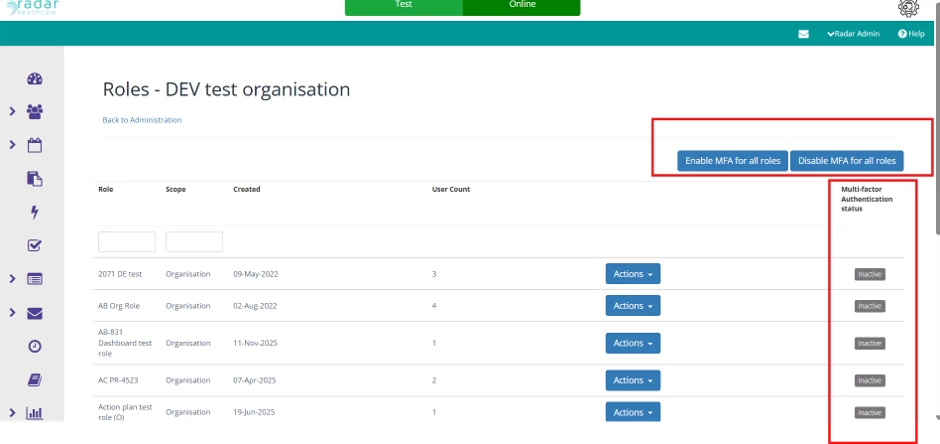
The Roles page now includes:
Bulk Actions
In the top-right corner:
- Enable MFA for all roles
- Disable MFA for all roles
MFA Status Column
A new column called Multi-Factor Authentication Status shows whether MFA is currently enabled or disabled for each role.
Enabling or Disabling MFA for All Roles
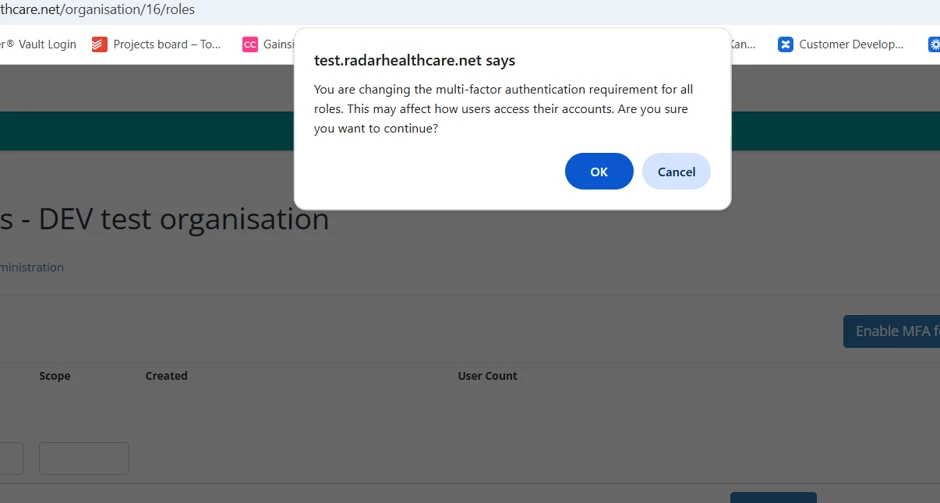
Selecting either bulk action button will display a confirmation message explaining:
- You are updating MFA settings for all roles
- Users may be required to set up MFA the next time they log in
You can then choose:
- Confirm to continue
- Cancel to return to the Roles page without making changes
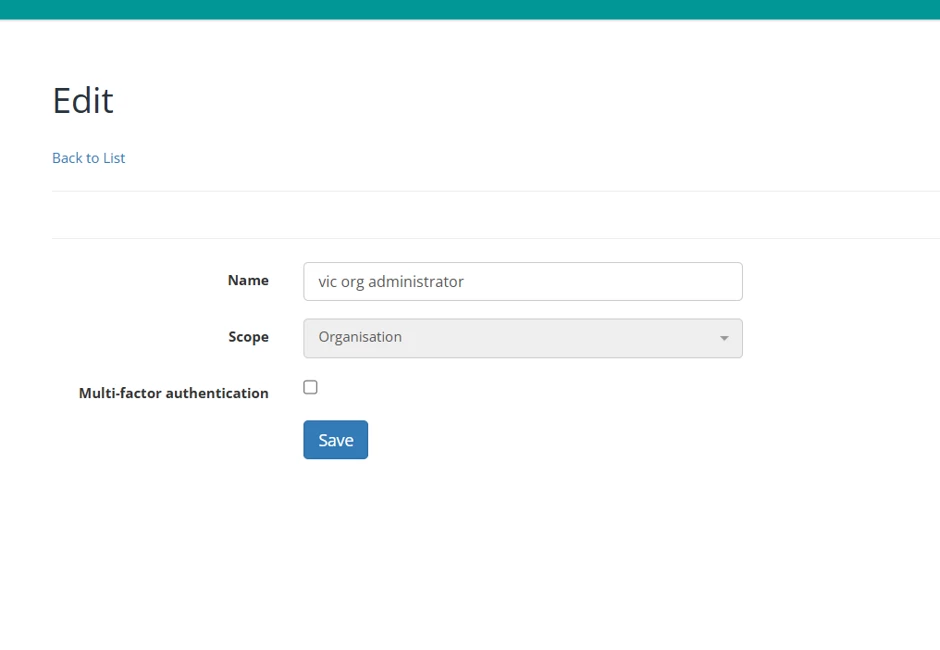
Enabling MFA for an Individual Role
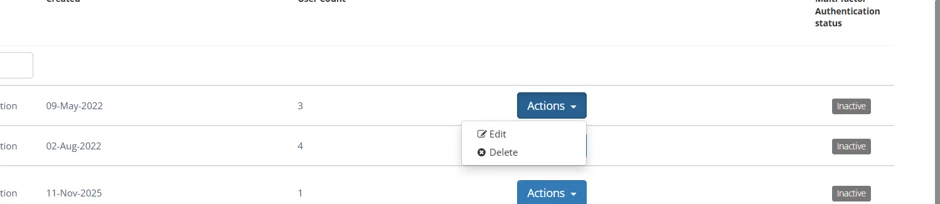
- On the Roles page, select Actions next to the role
- Select Edit
Within the role settings:
- Tick the Multi-Factor Authentication checkbox to enable MFA
- Untick the checkbox to disable MFA
Select Save to apply your changes.
Once saved, the MFA status for the role will update on the Roles page.
What Happens When MFA Is Enabled?
Users assigned to a role with MFA enabled will receive an email notification.
Example Email
Subject: Multi-Factor Authentication has been enabled for your Radar account
The email will explain:
- MFA has been enabled for their account
- They will need to set up MFA the next time they sign in
- Which organisation and account the change applies to
User MFA Setup Journey
The next time a user logs in to Radar Healthcare, they will be guided through MFA setup page
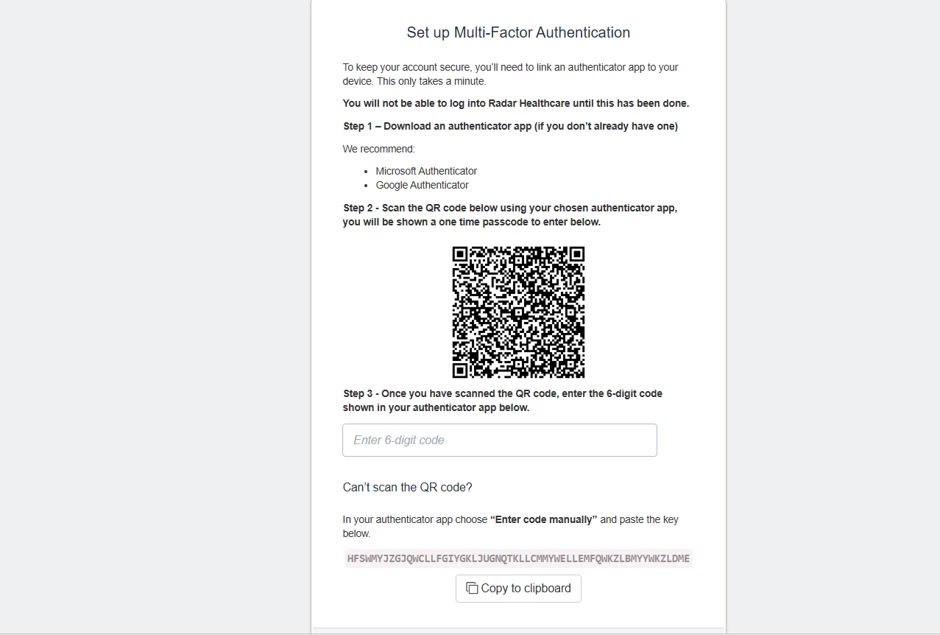
Step 1: Open an Authenticator App
Users should install or open an authenticator app, such as:
- Microsoft Authenticator
- Google Authenticator
- Authy
Step 2: Scan the QR Code
Users can:
Scan the QR code using the authenticator appOr manually enter the setup code if scanning is unavailable
Once connected, the authenticator app will generate a one-time verification code.
Users enter this code into Radar to continue.
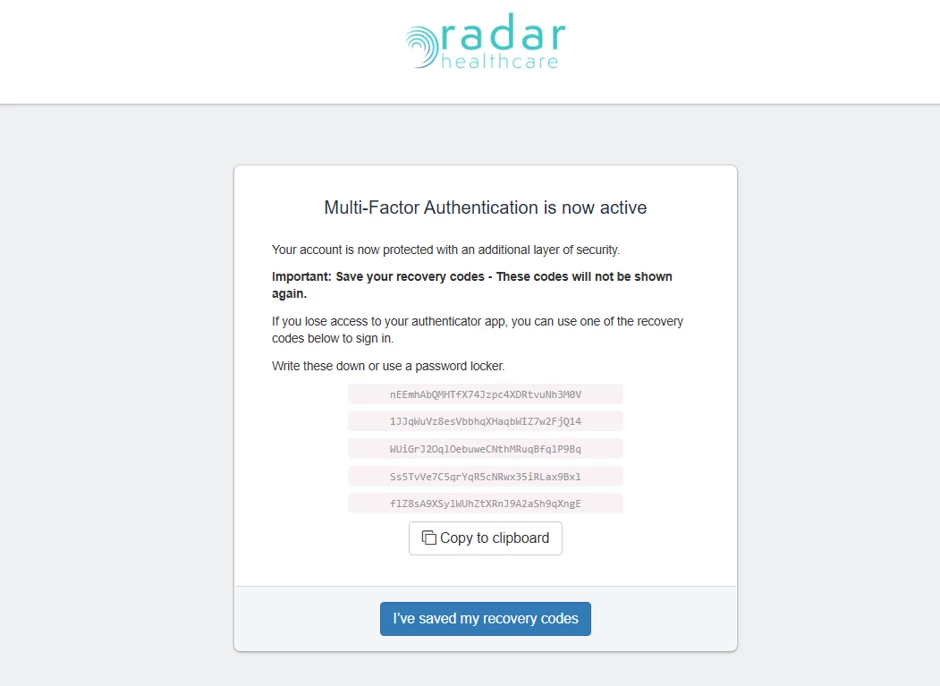
Step 3: Save Recovery Codes
After setup is verified, users will receive recovery codes.
These codes should be stored securely, for example:
In a password manager
In a secure offline location
Recovery codes can be used if the user loses access to their authenticator device.
Once saved, users select:
I’ve saved my codes
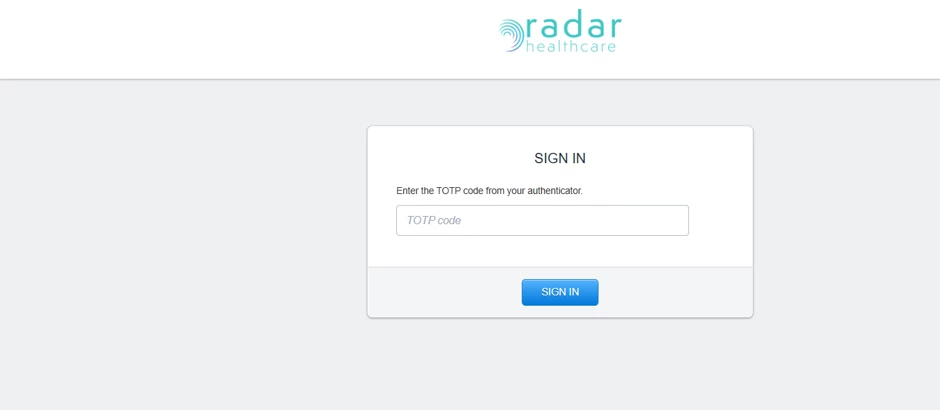
Step 4: Complete Login
Users will then sign in again using:
Email address
Password
Verification code from their authenticator app
Future Logins
While MFA remains enabled for their role, users will be prompted to enter a verification code from their authenticator app each time they log in.
Resetting MFA for a User
Administrators with the correct permissions can reset Multi-Factor Authentication (MFA) for a user if they lose access to their authenticator device.
Reset MFA option
Before You Start
To reset MFA for another user, administrators must have:
The Manage MFA system permission enabled
Access to the Administration area within Radar Healthcare
The Reset MFA option will only appear for users who currently have MFA enabled through at least one assigned role.
How to Reset MFA for a User
Go to Administration
Select Users
Open the required user’s User Details page
Select the ⋮ (three dots) overflow menu
Select Reset MFA
The option appears below Set password within the menu.
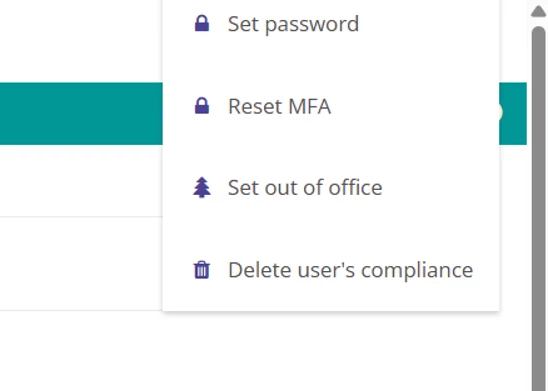
Note: This option would only appear for those users who have Multi factor authentication enabled.
Confirmation Message
When Reset MFA is selected, a confirmation message will appear.
Title
Reset multi-factor authentication
Message
This will remove the user’s authenticator and all backup codes.
The user will be required to set up MFA again the next time they log in if MFA is required for their role.
This should only be used if the user has lost access to their authenticator device.
Options
Reset MFA — Continue with the reset
Cancel — Return to the User Details page without making changes
What Happens After MFA Is Reset?
When MFA is reset:
The user’s existing authenticator setup is removed
All recovery codes are deleted
The user is treated as having no MFA configured
A new MFA activation email is sent to the user
User Experience After MFA Reset
The next time the user signs in:
They must complete MFA setup before accessing Radar Healthcare
They will be guided through the Setup Authenticator journey again
They will receive new recovery codes once setup is complete
Until MFA setup is completed:
The user cannot fully access the system
Attempting to navigate elsewhere within Radar will redirect them back to the MFA setup journey
Recommended Customer Guidance
We recommend administrators only use Reset MFA when:
A user has lost or replaced their authenticator device
A user no longer has access to their recovery codes
MFA setup has become inaccessible
Resetting MFA should not be used as part of regular account administration unless access recovery is required.
FAQs:
“What if I lose my phone?”
If you lose access to your authenticator device, you can use one of your recovery codes or contact your administrator, who can reset MFA for you.
What is Multi-Factor Authentication (MFA)?
MFA adds an extra layer of security by requiring both your password and a verification code from your authenticator app when signing in.
Which authenticator apps are supported?
Radar Healthcare supports standard authenticator apps including:
Microsoft Authenticator
Google Authenticator
Authy
Will users be forced to set up MFA immediately?
No. Users will be prompted to set up MFA the next time they sign in after MFA is enabled for their role.
Can MFA be enabled for some roles but not others?
Yes. MFA can be configured individually per role.
What happens when MFA is disabled for a role?
Users in that role will no longer be required to enter an authentication code during login.
Can administrators reset MFA for users?
Yes. Administrators with the correct permissions can reset MFA for a user if they lose access to their authenticator device.
Are recovery codes single use?
Yes. Each recovery code can only be used once.
Will users receive an email when MFA is enabled?
Yes. Users receive an email notification explaining that MFA has been enabled and that setup will be required at their next login.
Does MFA apply to all devices?
Yes. MFA is required whenever users sign in to Radar Healthcare while MFA is enabled for their role.