


Reading time 2 mins
Please note the Query Builder tool does not include the new and improved audit tool which has a range of advanced Analytics available.
- To export a report from the Query Builder, first ensure that all your criteria and columns have been set and you have select Run report.
- Once the report has run, select Export to CSV from the top of the screen.
- Depending on the content of the reports (i.e. Events, Audits, Compliance etc), you may be given the option to redact the data before exporting.
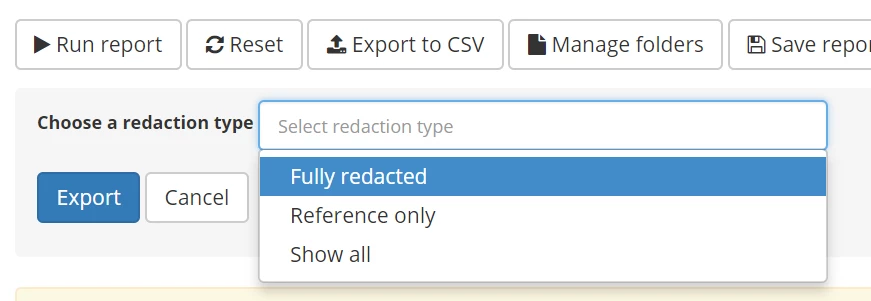
- Select your redaction type and click Export.
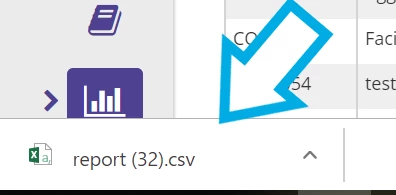
- The report will then download and can be opened in Excel should you wish to manipulate the data further.
What do the different Redaction options mean?
- When exporting reports, you may be given the option to choose a redaction type.
- Fully redacted - this option will replace any applicable fields with the word REDACTED. Applicable fields include anywhere a Service user or Staff member name is selected from a drop-down list within a form or workflow step. It does NOT include names referenced in "Completed by" or "Assigned to" fields, such as who a workflow step was completed by, or who an action is assigned to.
- Reference only - redactable information can be hidden and instead displayed as a reference ID. For example, staff members may instead display as their UserID, or Service users may display as their Patient ID. This ID is a reference field chosen and populated by you as an organisation.
- Show all - all information is displayed in full and no fields are redacted in any way.