


Reading time 2 mins
Introduction
If a user has left your organisation you will need to deactivate their user account and change their user record from "Active" to "Inactive”.
Once an account has been made inactivate they cannot:
- login to Radar Healthcare
- are removed from alerts and reports
- can no longer be assigned NEW tasks
This is done by entering an End Date on their user record.
How to make a user inactive
- Go to Administration > Users
- Search for the user you wish to set to inactive and click on the user to view their details.
- From the top of the screen click on the Edit button to edit the user details.
- In the Edit User screen, enter a date into the End date.
If this is a date in the future, the user will remain active until the date is reached.
If the date is today's date or a date in the past, the user will be set to inactive immediately.
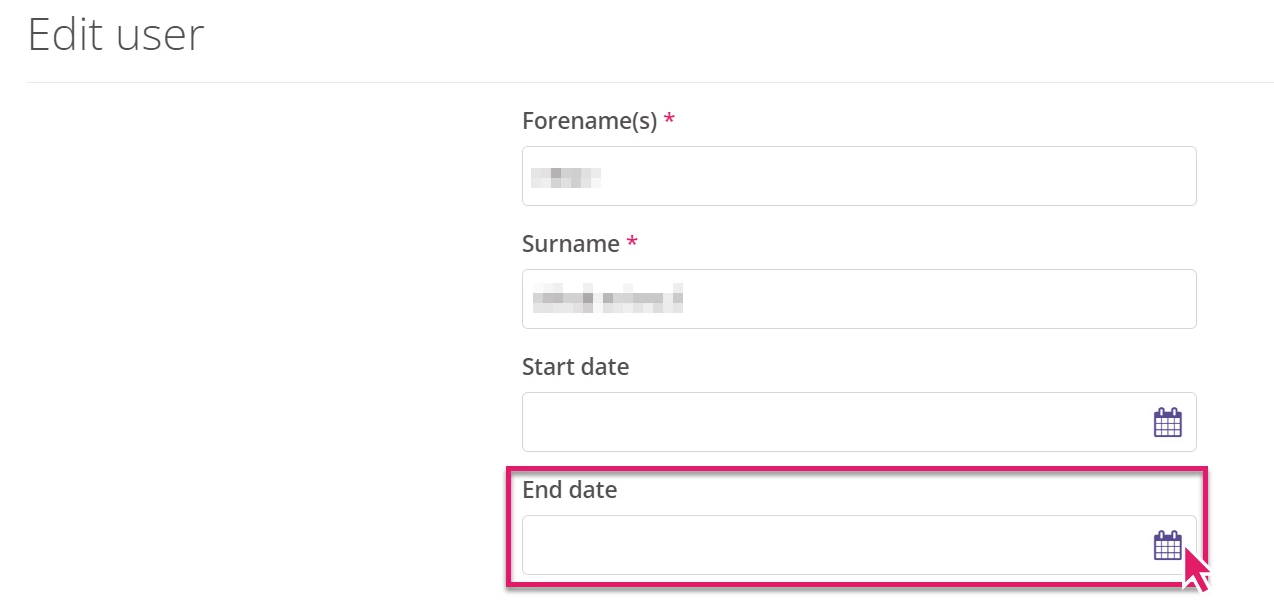
- Click Save to save the changes.
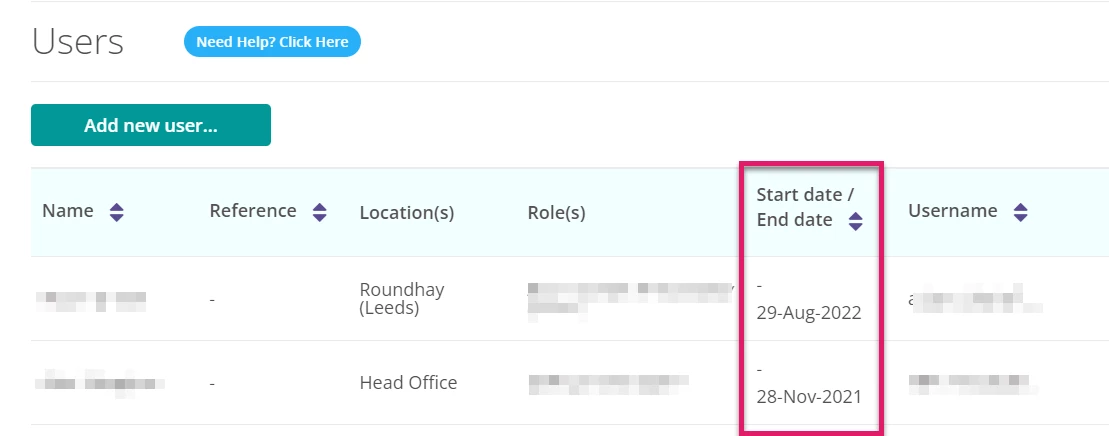
The user will now be displaying an end date in the Start date / End date column in the user list and will no longer be able to log in to the system.
NOTE: If a user has an end date set and they have assigned items then you will need to ensure that their items get reassigned. This can be done via Bulk Reassignment on the Admin Dashboard. Please find the relevant guidance here.
FAQs
Do I need to select No on the question ‘Allow this user to logon?’. If I do I get a rejection message...
- Simply add an End Date to the user’s record and this will archive them. The question ‘Allow this user to logon’ refers to the non-interactive function which is separate to archiving a user. Users WILL NOT be able to login if they have an End Date with today’s date or in the past.