


Reading time 2 mins
Introduction
Permission Rule Sets are applied to Workforce Compliance Requirements and dictate who will have access to view and complete the compliance requirements. Once a Rule set has been created you can use it for multiple requirements.
Viewing a Permission Rule Set
- To view existing Permission Rule Sets, click on the Administration option from your left-hand menu, then Permission rule set.
- Here you will see a list of your existing Compliance Requirement Permissions Rule Sets.
- You can view a Summary of the existing Rules by selecting the below icon to the right of the Rule.
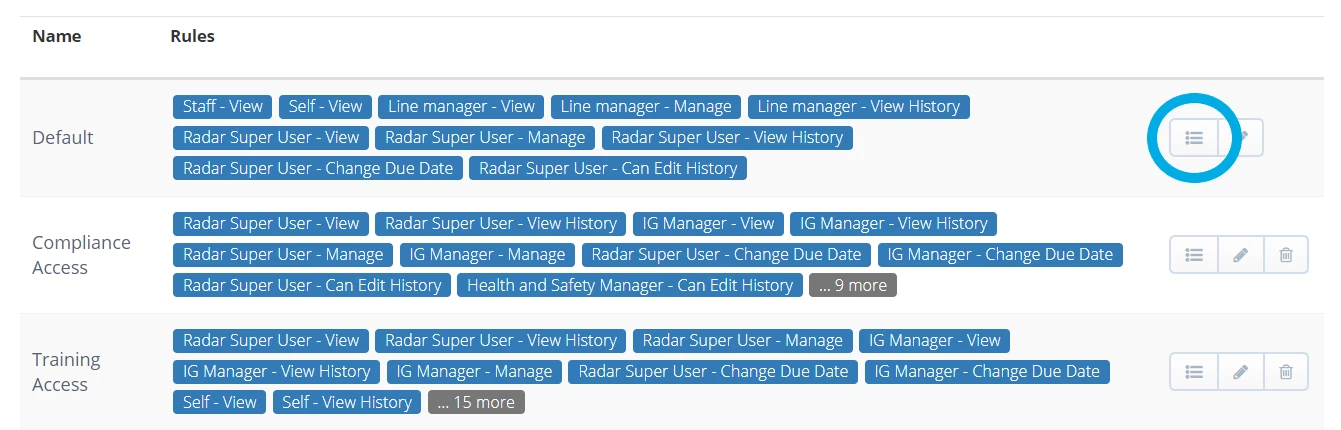
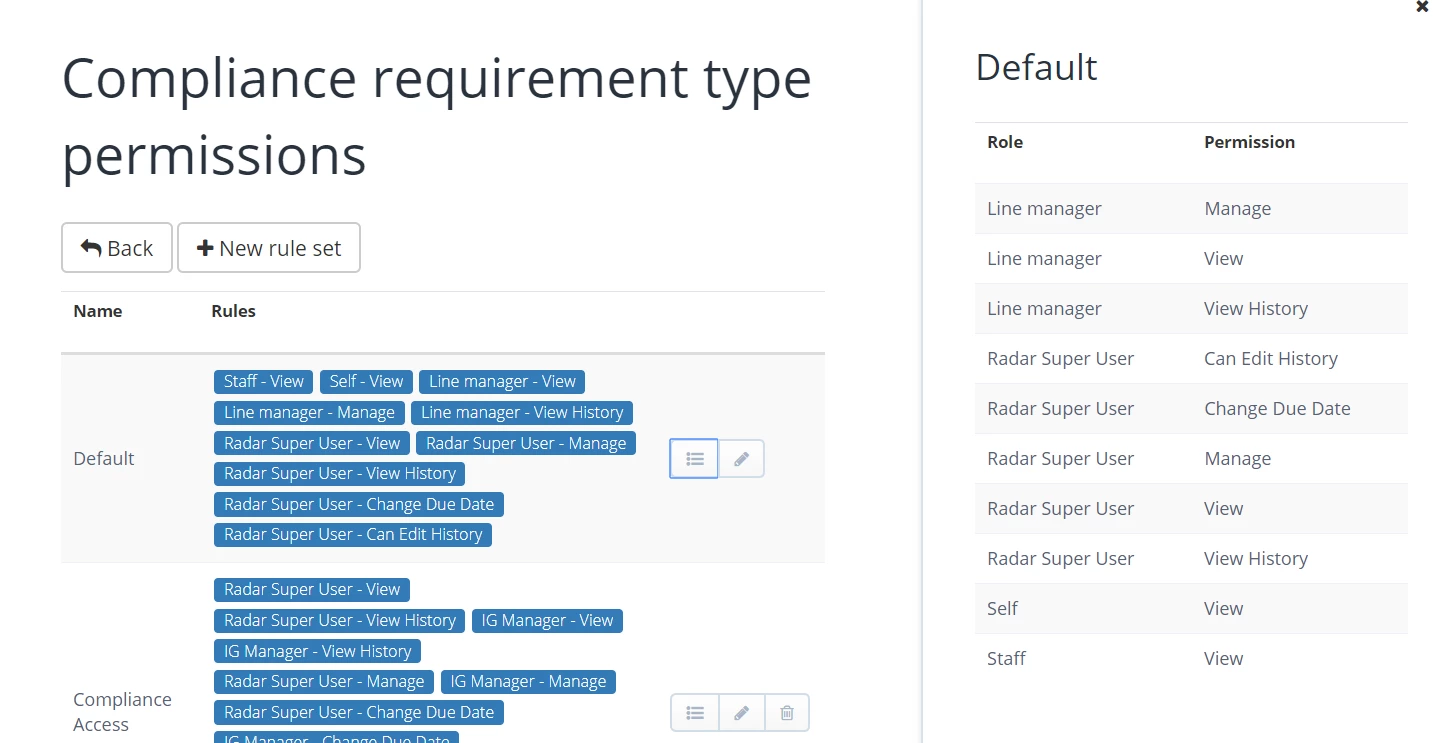
- This will show an easy to view summary of the permissions in a right-hand panel, listing the roles and the assigned permissions.
Editing a Permission Rule Set
-
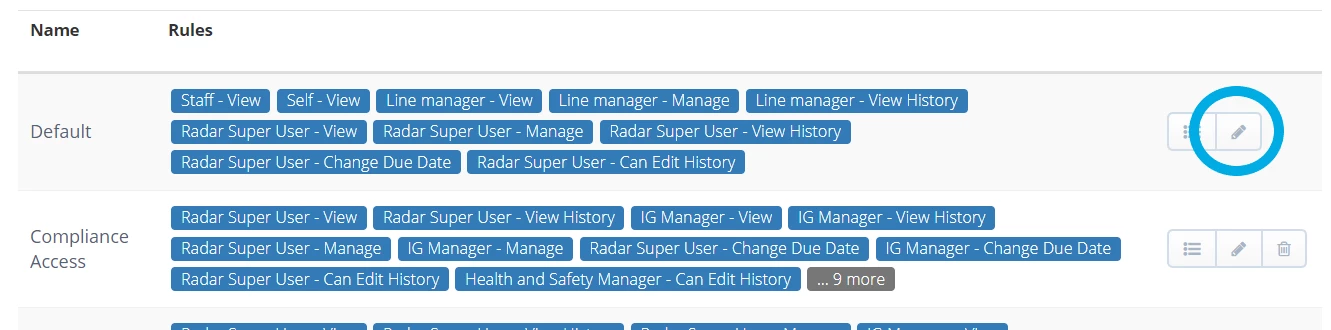
To Edit a Rule Set, select the pencil icon to the right-hand side of the Rule Set.
-
For more information about the settings within a rule set please see: Creating a New Compliance Requirement - Step 1: The Permission Rule Set
Deleting a Permission Rule Set
- To Delete a Rule Set, select the dustbin icon to the right-hand side of the Rule Set (you will be unable to delete the Default requirement).
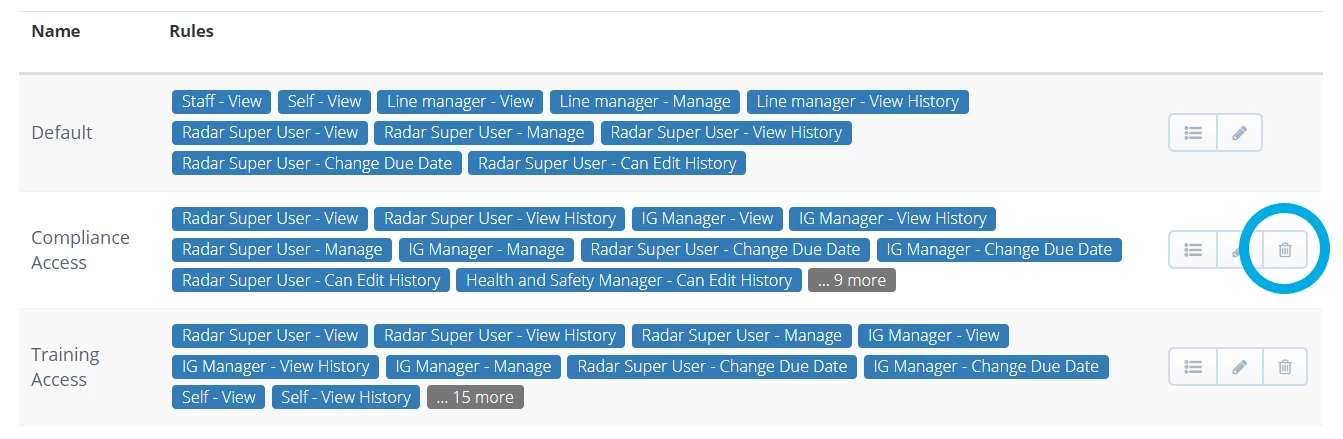
- If you delete a Permission Rule Set that is linked to a Compliance Requirement, that Requirement will revert back to the Default Permission Settings.